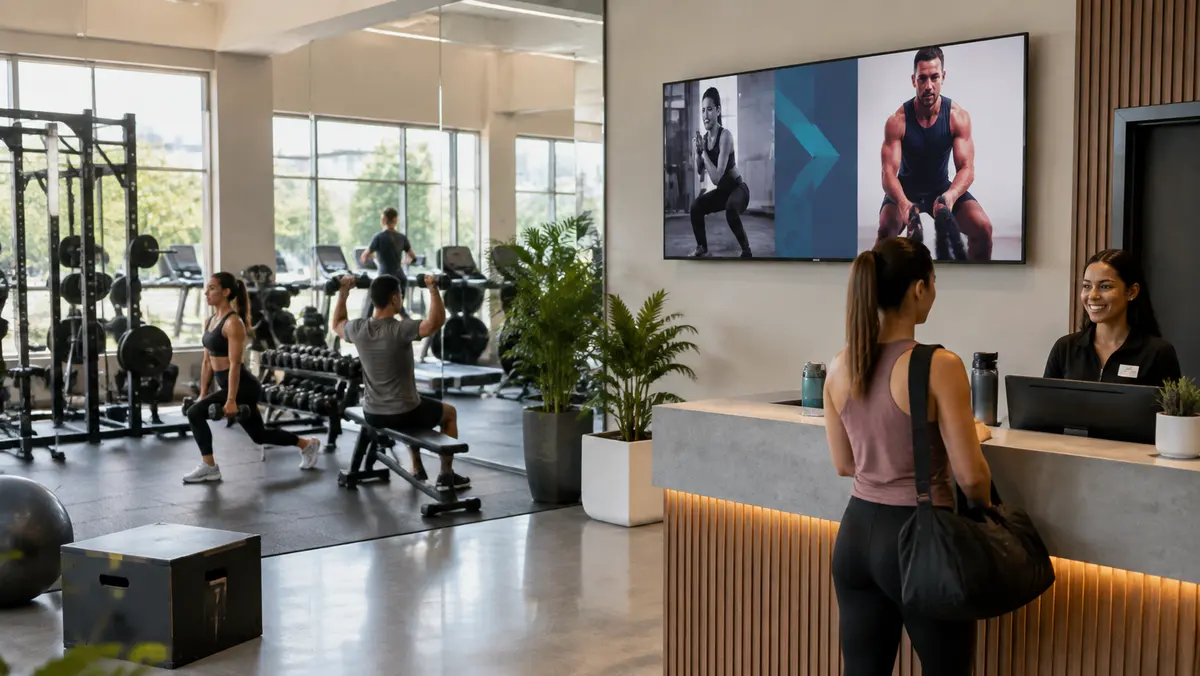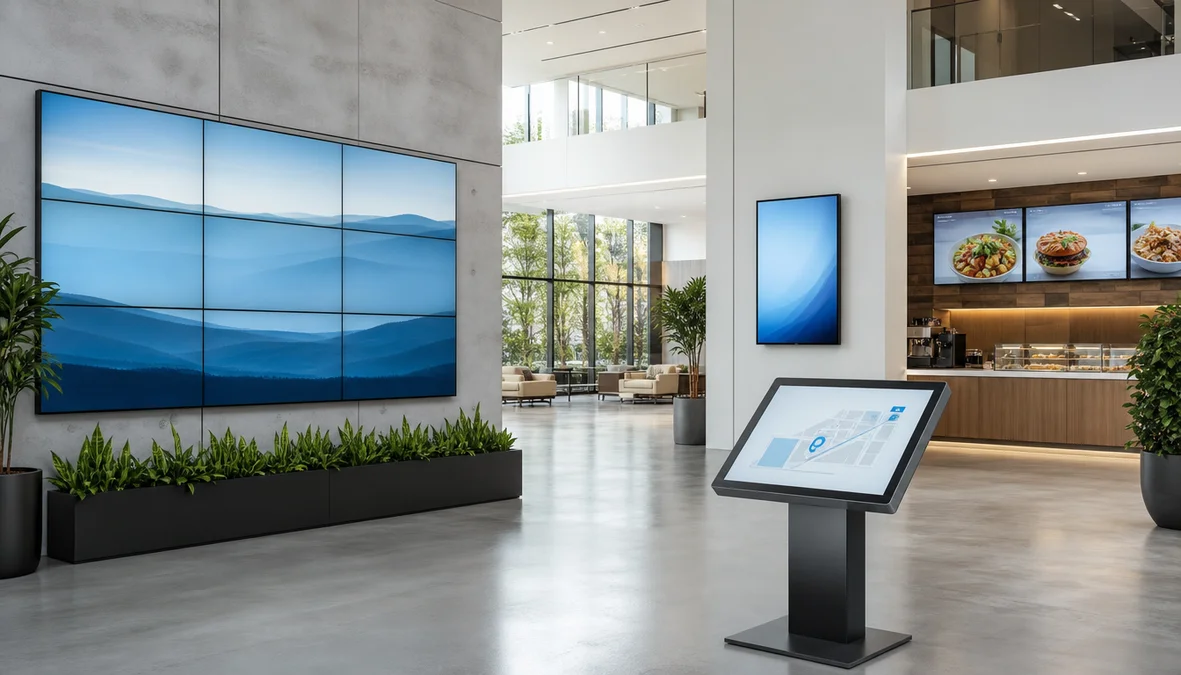
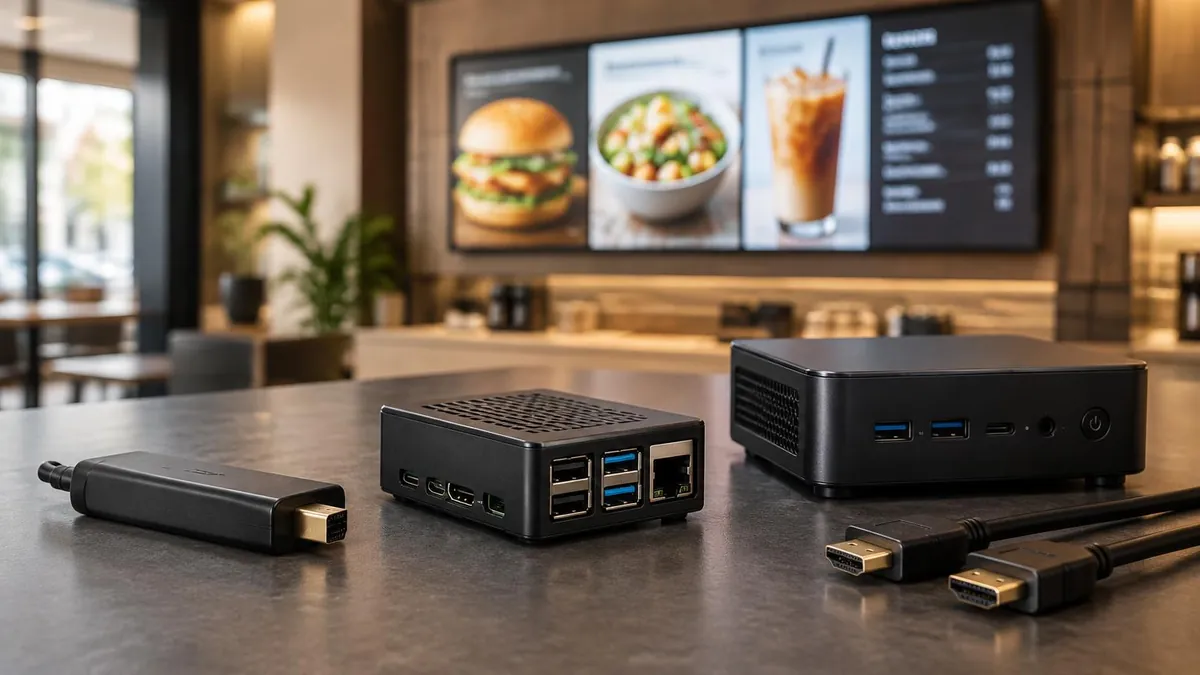
Here's something that trips up a lot of first-time buyers: your screen displays the content, but a small computer runs it. That computer may be an external device or built into a compatible display. That computer is the digital signage player, and it quietly decides whether your screens stay sharp and on schedule, or go black on a Monday morning.
Most people spend weeks picking the screen and about four minutes picking the player. This guide flips that. We'll cover what a player does, the main types (sticks, mini PCs, Raspberry Pi and built-in players), what to compare before you buy, and where our own TX9 stick fits. We'll also say where it doesn't.
Photo: the small player behind the screen runs the content. See TX9 digital signage player for the actual device.
What a digital signage player actually does
Think of the screen as a window and the player as the person behind it deciding what to show. In practice it does four jobs:
- Connects to your network, over Wi-Fi or a cable.
- Downloads your content and schedule from the content management system (CMS).
- Keeps a local copy, so playback doesn't depend on the connection at that moment.
- Plays on schedule, in the right order, at the right time, all day, every day.
The third job matters more than it sounds. If the player stores your downloaded playlist locally, a Wi-Fi drop does not have to interrupt that content. Live web pages, streams and data feeds still need an internet connection to refresh.
The four main types of digital signage players
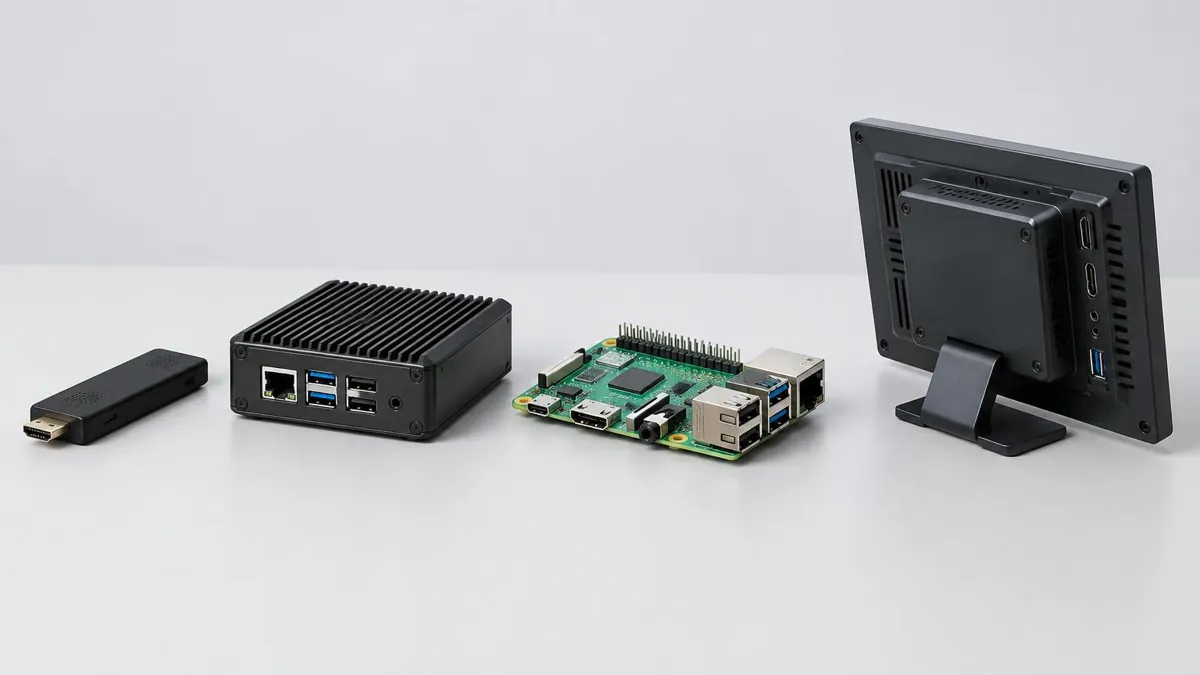
Streaming and Android sticks
A stick is about the size of a pack of gum and plugs straight into an HDMI port. Our TX9 is this type. People like them because they're inexpensive, they hide behind the TV, they make no noise, and setup is basically plug in and register.
The trade-offs are real, though. One stick drives one screen. There's usually a single USB port, so a wired network connection means adding an adapter. For menu boards, lobby screens, directories and most "one TV, one message" jobs, that's plenty.
Mini PCs (Windows or Chrome OS)
This is a small box, like a Chromebox or a Windows mini PC, that behaves like a full computer. You get more horsepower, more ports, and wired Ethernet on most models. In exchange they cost more, take up more room, and some have fans. A full operating system also means updates, restarts and the occasional surprise.
They make sense for demanding content, like busy live web pages or layouts with several video zones. They also make sense when you already own one: our app runs on Chrome OS and Windows, so a device you have may work as a player.
Raspberry Pi
The tinkerer's favorite: a credit-card-sized computer that's cheap on its own, and our app runs on supported models. But "cheap" only counts the board. You'll add a case, a power supply, a microSD card and the right HDMI cable, and at that point you've built your own player. See Raspberry Pi digital signage setup for equipment and setup guidance.
The usual weak point is the SD card, which can get corrupted if power is cut suddenly. A Pi in a spot where someone might unplug it every night is a risk. It's a great option if you're comfortable with hardware or want to reuse parts. It's a poor fit if you plan to hand a box to a store manager and say "good luck."
Built-in and dedicated commercial players
Some commercial displays have a player built into the screen (often called SoC displays). Some vendors also sell dedicated commercial players, generally priced above consumer-grade hardware and aimed at demanding installs.
Whether either works for you comes down to one question: does your signage software support it? Always check your CMS's supported-device list before buying hardware. For E Display that list is the TX9 stick, Chrome OS, Windows, Android TV and Raspberry Pi.
Player types at a glance
| Type | Best for | Strengths | Watch out for |
|---|---|---|---|
| Stick (like our TX9) | One screen, one playlist: menus, lobbies, directories | Small, quiet, simple setup | One screen per stick; wired network needs an adapter |
| Mini PC | Heavier content, devices you already own | Power, ports, built-in Ethernet | Cost, size, OS updates |
| Raspberry Pi | DIY setups and IT-comfortable teams | Low board cost, flexible | You assemble it; SD card reliability |
| Built-in or dedicated commercial | Specific display brands or demanding installs | Fewer boxes, or purpose-built hardware | Check CMS support first; often costs more |
Swipe the table sideways to see all columns.
What about a Fire Stick?
An Amazon Fire TV Stick can work with signage platforms that explicitly support it. Before choosing Fire Stick digital signage, check the exact model, app availability, auto-start behavior, sleep and screensaver settings, and remote management with your software vendor.
The bigger issue is support. A signage app only runs on a device its vendor has built and tested it for. E Display does not currently support Amazon Fire TV or Fire TV Stick devices. If you're considering any consumer stick, ask the vendor whether that exact device is supported before you buy ten of them. If it isn't, choose a supported player instead of assuming all Android-based sticks work the same way.
What to compare before you buy a player
- Resolution. Most signage content looks right at 1080p. A 4K player matters if your display is 4K and your images or video are 4K too. Check both ends before paying for it.
- Offline playback. Ask whether the player caches your playlist locally and what happens when the connection drops. The answer should be "it keeps playing."
- Network. Wi-Fi is fine for most single-screen setups. For a large install in a busy building, a wired connection is often steadier, so confirm the player can do it.
- Heat and noise. Players live behind screens in tight spaces. A fanless design is quieter and has one less part to fail.
- One screen or many. Some players drive one display, and some can drive more. Know which you're buying, because it changes your per-screen cost.
- Warranty and support. Find out how long the hardware is covered and who you call when it misbehaves.
- Total cost. Count the player, the software license and any adapters or mounts, not just the sticker price of the box. Our digital signage cost guide breaks down the full project budget.
Where our TX9 fits, and where it doesn't
The TX9 digital signage player is our own stick, and it's built for the "one screen, one playlist" job. Here's what's on the spec sheet:
| Specification | TX9 |
|---|---|
| Processor | Amlogic S905Y5 quad-core ARM Cortex-A55 |
| Memory / storage | 2 GB RAM, 16 GB ROM |
| Operating system | Android 14 |
| Video output | 1080p up to 4K at 60 fps over HDMI 2.0 |
| Wi-Fi / Bluetooth | Dual-band 802.11 a/b/g/n/ac (2.4 GHz and 5 GHz), Bluetooth 4.0 |
| Ports | HDMI 2.0, USB 3.0 OTG, 5V DC power |
| Size | 107 × 32 × 14 mm |
| Screens per stick | 1 |
| Warranty | 1 year |
Swipe the table sideways to see all columns.
A few practical notes. It's fanless and silent. The playlist is cached locally, so downloaded scheduled content keeps playing during an internet outage and syncs when the connection comes back. Live feeds still need connectivity. For a wired connection, use a USB-to-Ethernet adapter on the USB port. The box includes the stick, a remote, a USB power cable and an IR extension cable.
Cost: the TX9 is $50 as a one-time purchase, or free with any new yearly license (new activations only, not migrations from the older Signage Studio / Droid Z5 setup). Shipping is free to the US and Canada. The software is $8 per screen per month billed annually, and each stick needs its own license. See digital signage pricing for the full breakdown.
Where it isn't the right pick: if you already own a Chromebox, a Windows mini PC or an Android TV box that works well, you can run our app on that and skip the stick. If your content is unusually heavy, such as complex live web dashboards, test it on a pilot screen first or talk to E Display before you buy in bulk. All of the supported options are on our digital signage media player options.
Setting up a player in three steps
- Plug it in. Connect the stick to an HDMI port, connect power, and switch the TV to that input. Open the preinstalled player app.
- Get it online. Pick your Wi-Fi network from the list and enter the password with the remote.
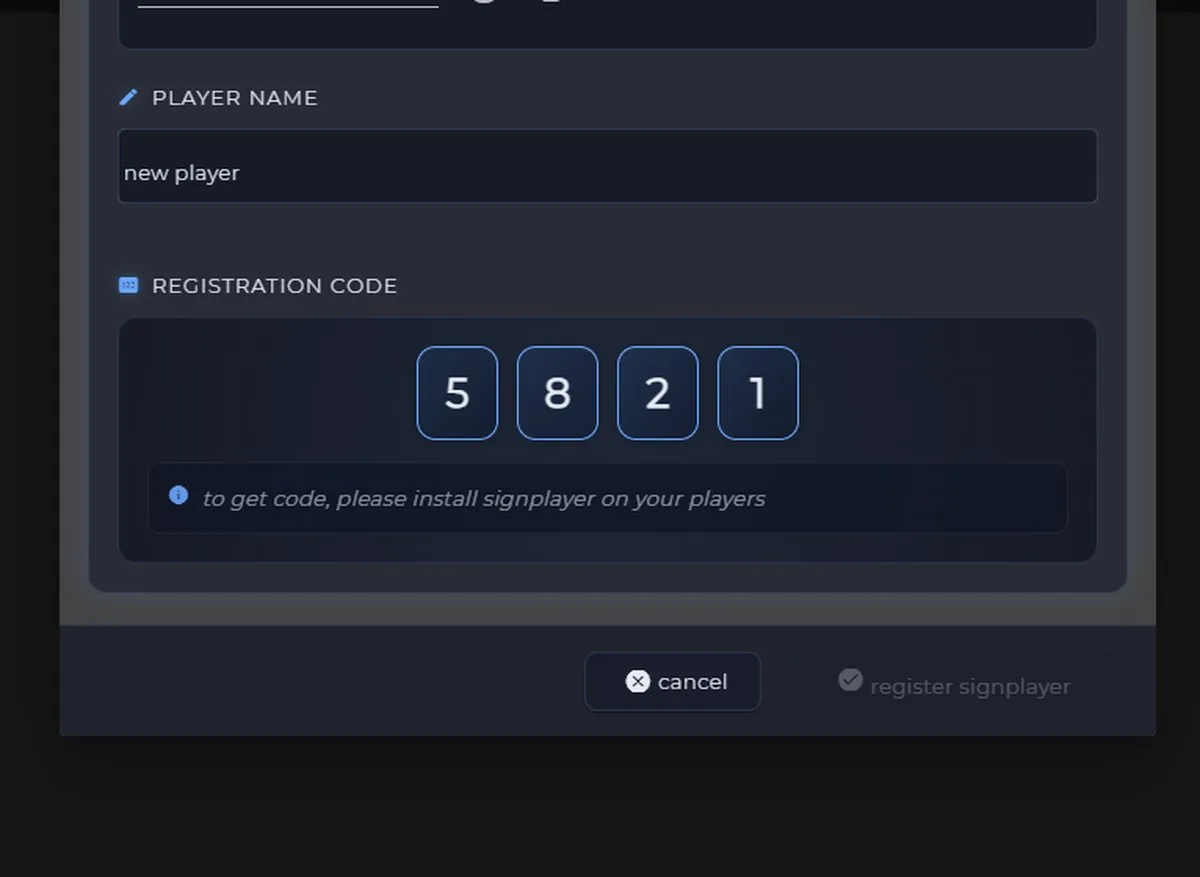
- Register it. The screen shows a 4-digit code. In your CMS, add a new screen and enter the code. Assign and publish a playlist to the registered player.
For the software side, see our digital signage software guide and cloud-based digital signage overview.
Which player should you choose?
- One TV, one job, minimal fuss: a stick.
- Already own a Chromebox or Windows mini PC: try the software on it first.
- Comfortable with hardware and want full control: a Raspberry Pi.
- Specific displays or a very demanding install: check whether your CMS supports built-in or dedicated commercial players.
- Not sure: pilot one screen before you commit to twenty.
What is a digital signage player?
A small device that connects to your screen, downloads content from a CMS and plays it on schedule. The screen displays the content, and the player runs it.
Do I need a player if my TV is a smart TV?
Sometimes a smart TV can run a signage app directly, but it depends on the TV's platform and whether your software supports it. A dedicated player is more predictable, because the same hardware behaves the same way every time and you can replace it without replacing the TV.
Can one player run several screens?
It depends on the player. Our TX9 drives one screen, so each screen gets its own stick. That also lets you run different content on every screen.
Does a player need an internet connection all the time?
It needs internet to receive updates and refresh live feeds. With local caching, downloaded scheduled content keeps playing through an outage and syncs when the connection returns.
Can I use a Raspberry Pi as a digital signage player?
Yes. Our app supports Raspberry Pi, along with Chrome OS, Windows and Android TV. Plan for a case, power supply, SD card and cable, and protect it from sudden power loss.
How much does a digital signage player cost?
It ranges widely by type. The TX9 is $50 one-time, or free with a new yearly license. A Raspberry Pi or mini PC varies by what you build or buy, so count the whole kit and the software license, not just the box.
Not sure which player fits your screens?
Talk to E Display about your hardware and content, or compare what is included with each software plan.

About the author: Khalid Qadir
Khalid Qadir is Co-Founder & VP Business Development at E Display, with 20+ years of experience as a Principal Product Manager scaling AI-driven enterprise platforms including conversational AI, agentic automation, and digital signage and CX systems for Fortune-scale organizations.
Connect with Khalid on LinkedInStill choosing a vendor? Compare digital signage platforms head to head, run your own numbers with the digital signage budget calculator, or see our digital signage pricing at $8 per screen per month with a free media player.