
4K-ready output
Match the player to the display resolution and the video, images, dashboards, or menu layouts you will publish.
A digital signage player turns any compatible TV or commercial display into a remotely managed screen. Run 4K video, menus, directories, dashboards, social feeds, and scheduled promotions with content stored locally for dependable playback.
Not sure which player fits your screens? Read our digital signage player buying guide.
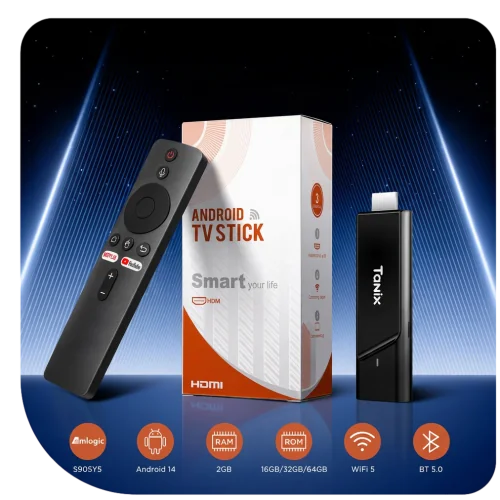
A compact, preconfigured player for buyers who want a straightforward installation and one support team for the software and hardware.
Reuse a supported Raspberry Pi when your team is comfortable preparing the device and testing it with the content you plan to show.
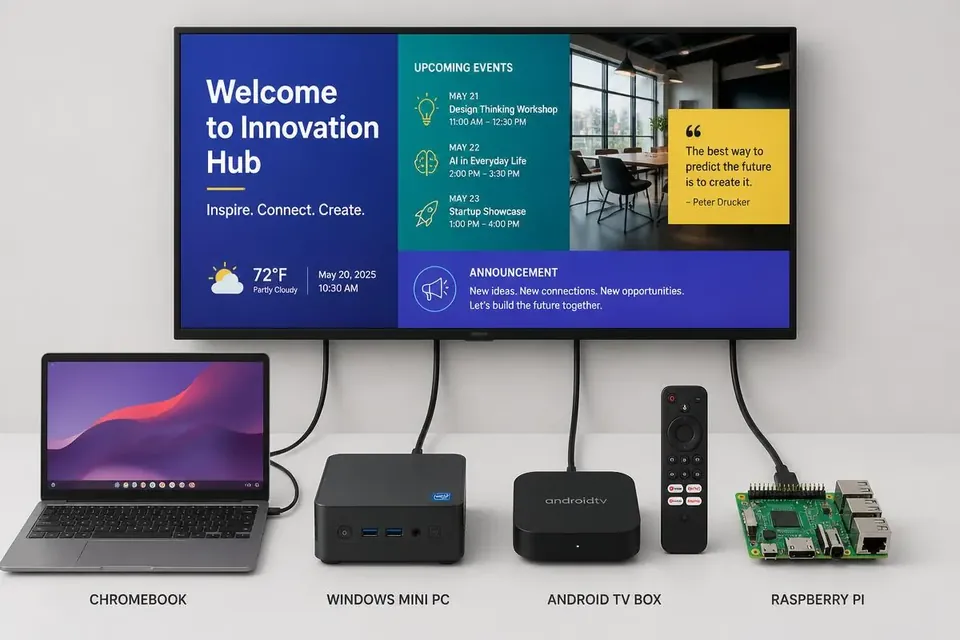
Install the E Display player app on a supported device and manage it beside every purpose-built player in the same account. A Windows digital signage player, an Android digital signage player, a small-form digital signage PC or a signage box all run the same playback app, so your digital signage hardware can be mixed across sites without changing how content is scheduled.
 Windows
 Chrome OS
 Android TV
 Raspberry Pi
The media player is the computer behind the screen. It signs in to the content management system, downloads the content assigned to that display, stores files locally, and plays them according to schedule. It also sends status information back to the digital signage CMS so your team can check what is online without visiting the location.
This separation matters because the screen and the player do different jobs. The display provides the picture; the player handles content, schedules, recovery, and communication with the cloud. If a player eventually needs replacement, the TV can stay mounted and the small device behind it can be swapped.
Match the player to the display resolution and the video, images, dashboards, or menu layouts you will publish.
The screen should return to its assigned content after a reboot or power interruption without an on-site visit.
Downloaded media and schedules stay on the device, so ordinary content keeps playing when the connection drops.
Publish updates, check player status, restart playback, and capture the screen from the same browser dashboard.
Use stable Wi-Fi or wired Ethernet where available, especially for large downloads and live information feeds.
Choose hardware with a clear replacement path and software support that covers the complete playback workflow.
A 4K player can output 3840 × 2160 content to a compatible display, but resolution alone does not make hardware suitable for signage. Check playback recovery, local storage, orientation, network stability, remote monitoring, and support for the exact content you use. A menu board showing still images has lighter demands than a display running several high-resolution videos, live web pages, or interactive content.
| Player approach | Best for | What to confirm |
|---|---|---|
| Purpose-built signage player | Straightforward rollouts and consistent hardware across locations | Warranty, replacement process, 4K support, offline playback |
| Windows or Chrome OS device | Existing mini PCs, web-heavy content, and IT-managed fleets | Automatic login, update policy, output resolution, storage |
| Android TV device | Compatible TVs and compact Android playback hardware | Exact device support, kiosk behavior, power recovery |
| Raspberry Pi | Technical teams reusing or preparing their own hardware | Model compatibility, enclosure, power supply, content testing |
A smart TV may be convenient for a single low-risk screen, but consumer television apps can sleep, sign out, or change behavior after automatic updates. A dedicated signage player is designed to launch its assigned content after power loss and continue from its local cache if the internet becomes unavailable. Dedicated signage player is more reliable.
For menu boards, lobby directories, retail promotions, and multi-location networks, that predictable recovery is usually more valuable than removing one small device from behind the screen.
Amazon Fire TV and Fire TV Stick products often appear when people shop for an inexpensive digital signage player. E Display does not currently support Amazon Fire TV devices, so we do not recommend buying one for an E Display installation.
Use the purpose-built TX9, a supported Android TV device, Windows or Chrome OS hardware, or a compatible Raspberry Pi instead. Confirm compatibility before purchasing a large number of third-party devices, even when a marketplace listing describes them as a “signage player.” If you are looking for a no-cost setup, compare free digital signage options, or start with what digital signage is if you are new to screens and players.
For a landscape digital menu board or portrait building directory, prioritize automatic startup, portrait rotation, readable 4K output, and offline playback. One player per screen keeps each display independently scheduled.
For larger fleets, consistency and remote visibility matter. Standardize the approved player models, connection method, mounting position, and replacement process so every location can be supported the same way.
Attach the player to the screen, power it on, and select the correct display input.
Join a stable Wi-Fi network or use wired Ethernet when the supported device allows it.
Enter the four-digit code shown on screen in your E Display account.
Assign a scene the player downloads the content and begins playback.
See the complete workflow on the How It Works page. Software is $8 per screen per month with all features included; use the digital signage budget calculator to estimate displays, players, mounting, and software together.
Start with the TX9 or compatible hardware you already own. Every screen uses the same E Display software and support.