Walk into almost any public building and you'll find the same quiet problem. A laminated sheet taped to a door says the permit counter moved to the second floor. A paper schedule for council meetings is two months out of date. Someone at the front desk answers "where do I go?" forty times a day.
Public buildings serve everyone: people in a hurry, people who've never been there, people who don't read English as a first language, and people who are anxious because they're there for a court date or a license renewal. Digital signage won't fix a slow process. But it does fix the part where people can't find out what's happening, and it lets a small staff keep information current without a print shop.
This guide walks through how city halls, courthouses, libraries and community centers use screens, what to put on them, and what to plan for before you buy anything.
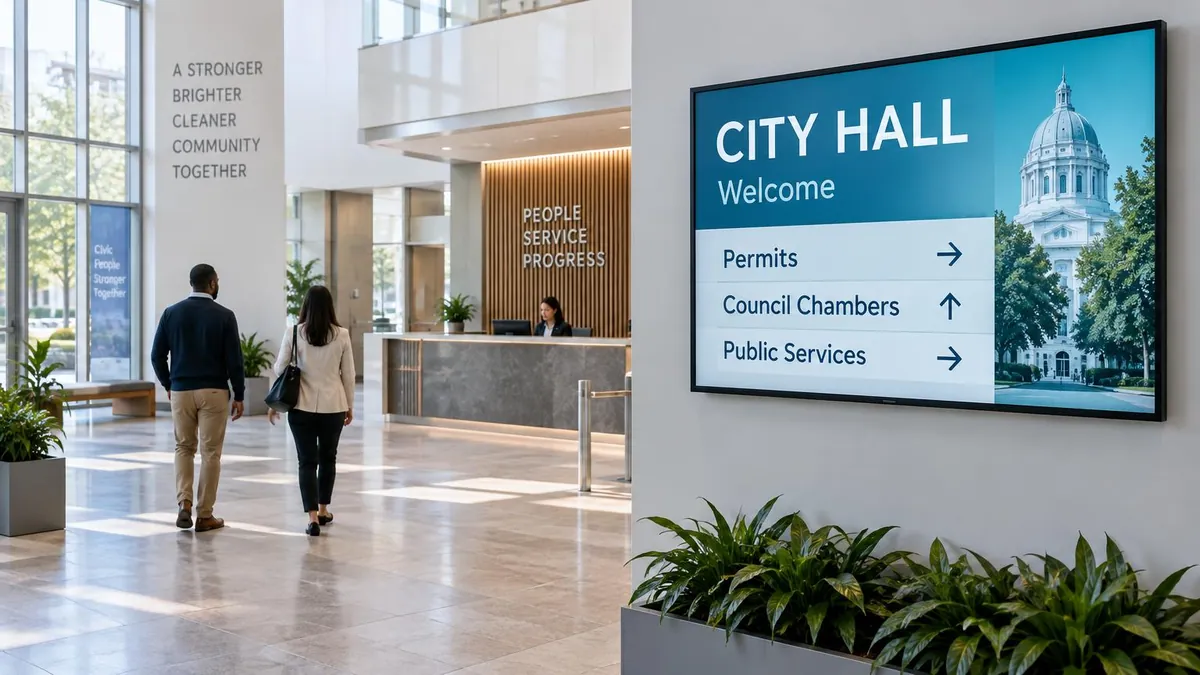
Illustrative public-building screens shown in AI-generated images, not photographs of customer installations.
Why public buildings are different from a store or an office
Most digital signage advice is written for retail, where the goal is selling more. Public buildings have a different job, and it changes how you design and run the screens.
- The audience is everyone. You can't assume a shared language, reading level, vision or comfort with technology.
- The information is official. A wrong meeting time or a stale closure notice isn't a missed upsell. It sends someone to the wrong place on a day that matters to them.
- Many people can publish, but few should. Departments each have their own news. You need a way for them to contribute without any one of them being able to put the wrong thing on every screen.
- Money is scrutinized. Purchases go through budgets, quotes and sometimes formal procurement, so predictable pricing matters.
Keep those four in mind. Almost every decision below comes back to them.
What city halls and municipal offices put on screens
City hall is usually the most varied building, because it houses many departments under one roof.
Wayfinding and department directions. A directory showing which department is on which floor, with arrows to the right hallway, takes pressure off the front desk. If you have a multi-floor building, this is usually the best first screen. Our guide to digital wayfinding: digital wayfinding guide covers the layout principles, and the same ideas behind a digital building directory: digital building directory apply here.
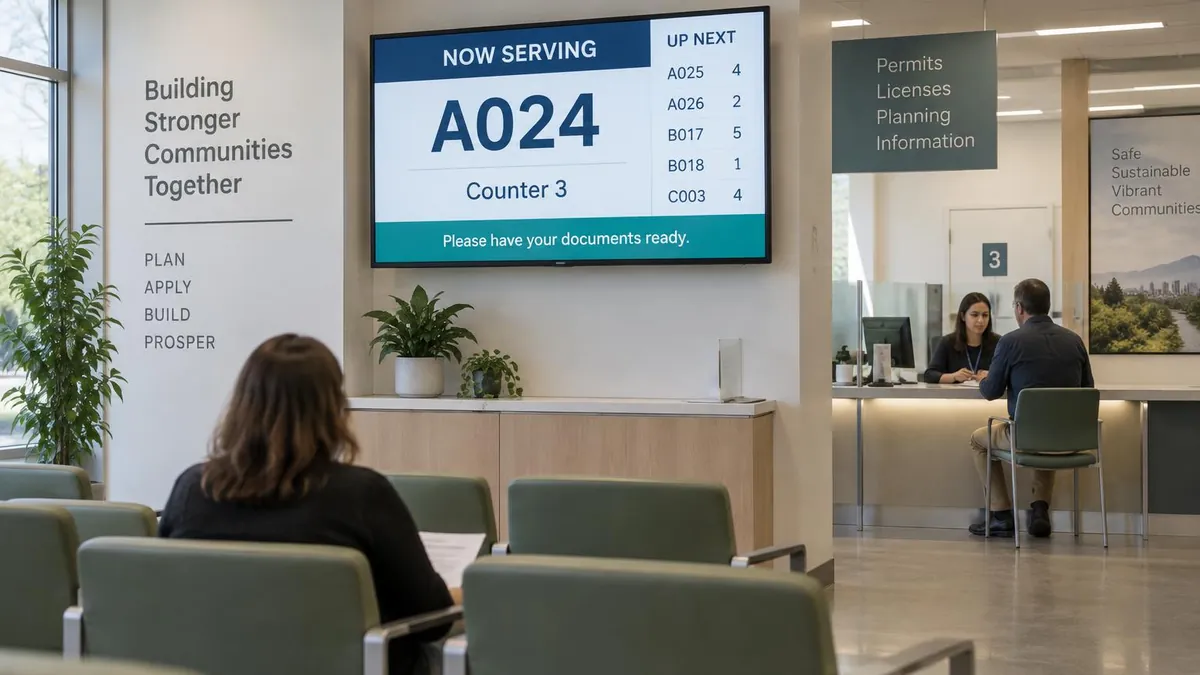
Queue and "now serving" displays. Where there's a ticket or number system, such as at a licensing or permit counter, a screen showing the number being served lets people sit down instead of hovering by the window. Queue displays can use supported queue components or a compatible data feed. Confirm the connection to your ticketing system and test it before purchase. If your counter doesn't use tickets, a simple screen listing which window is open and the typical wait still helps.
Public notices and meeting information. Council meeting dates, public hearing notices, agenda highlights and service closures are the content people most often come in asking about. A rotating notices screen means that information is where people are already looking.
Service guidance. "What to bring to renew a license" or "how to apply for a permit" in plain language, with a short checklist, saves both the visitor and the clerk a second trip. Keep each slide to one task.
Community information. Recycling schedule changes, road closures, events in the park. This is the friendly content that gives people a reason to read the screen on a normal day, so they're already looking when something urgent appears.
Courthouses and justice facilities
Courthouses are stressful places, and the signage has to be calm, clear and correct.
Courtroom and hearing schedules. Visitors need to know which courtroom they're in. A screen listing the day's sessions by room, refreshed from the schedule your staff maintain, replaces a hand-updated list on the wall. Whatever you display, check with your court administrator or counsel about what is appropriate to show publicly. Some courts limit what appears on public screens, and that is their call, not the signage vendor's.
Directions and security guidance. Where the metal detector is, what you can't bring in, which entrance to use. Putting this at the door reduces confusion at the screening line.
Notices and closures. Weather closures, changes in hours, jury information. These change quickly, which is exactly where paper fails.
Calm, quiet design. Skip motion-heavy layouts and flashy transitions. Use plain backgrounds, large text and slow changes.
A practical note: in sensitive environments, many teams keep the public-facing screens to schedules, directions and notices, and leave anything case-specific to the staff and the printed documents the court already issues.
Digital signage for libraries
Libraries are one of the best fits for signage, because they already want to tell people about a lot of things, and they have many small spaces to tell them in.
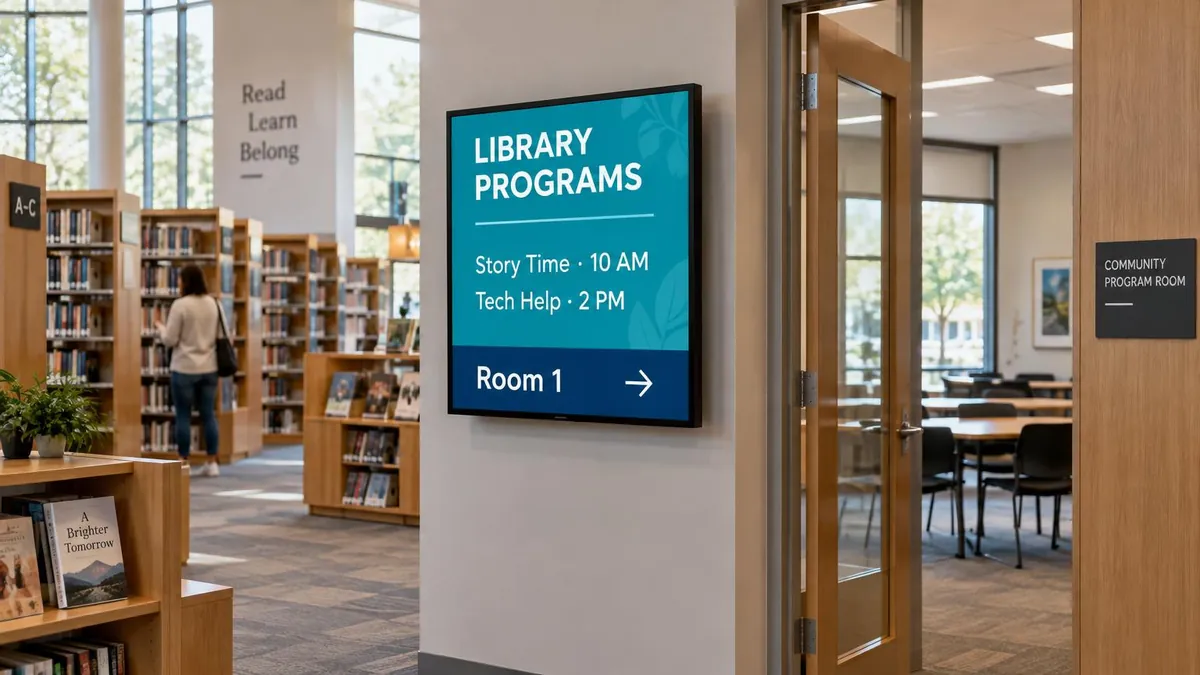
- Programs and events. Story time, ESL classes, job help, tech workshops. One rotating slide per program, with the date and room.
- New arrivals and featured collections. Book covers are visual and quickly changed, which suits a screen well.
- Room and computer availability. A screen outside a meeting room showing "Reserved until 3:00 p.m., Community Book Club" is cleaner than a printed sheet in a plastic sleeve.
- Wayfinding. Fiction, children's section, reference desk, restrooms. Large libraries and branches with multiple floors benefit most.
- Hours and closures. Holiday hours and weather closures, updated in minutes.
- Multi-language welcome. Rotating the welcome message through the languages your community speaks tells people they're in the right place.
- Multi-branch management. If your system has several branches, one dashboard for all of them beats updating each building separately. E Display runs multiple locations from a single account, with permissions configured for the screens each department or branch should manage.
Community centers, parks and recreation, and other public spaces
The same building blocks show up again in smaller public spaces:
- Community and recreation centers: class schedules, pool or court hours, program sign-ups, facility rules.
- DMV and licensing offices: queue status, document checklists, estimated wait.
- Public safety buildings: non-emergency contact information, community notices, lobby directions.
- Senior centers: daily activities, lunch menus, transportation schedules.
You don't need a different system for each. You need a consistent layout style and a way for the right person in each space to update their own screens.
Digital signage emergency alerts and public-safety messages
This is the use case people think of first, and the one worth planning most carefully.
E Display supports emergency-alert content that can replace normal screen content. Before relying on it for severe weather or evacuation messages, confirm the trigger, authorized users and return-to-normal process with your signage provider, then test the complete workflow. For the full feature description, see the government digital signage solution page: E Display government digital signage.
A few cautions from experience:
- Signage is a supplement, not your alert system. Screens reach people who are in the building and looking up. They don't replace sirens, public address systems, mass notification or fire alarms. Your emergency plan should treat screens as one more channel.
- Decide who is allowed to trigger an alert, in writing. The ability to take over every screen should belong to a few named people.
- Write the templates in advance. At 2 a.m. during a storm is not the time to design a slide. Prepare a handful of clear, plain-language templates ("Severe weather: move to the lower level") and review them with your emergency management staff.
- Test it. Run a test during a quiet hour and confirm that screens switch and then return to normal.
Accessibility and language
Public buildings are expected to be usable by everyone. Screens are part of that, and design is where most of the work happens.
- Make text big and high-contrast. If it can't be read from several feet away, it's decoration.
- Say less per slide. One idea, a short sentence, a clear arrow.
- Don't rely on color alone. Use labels and icons alongside color.
- Give slides enough time. People who read slowly, or in a second language, need longer than you think.
- Offer multiple languages. Rotating the same message in the languages your residents speak is simple with a content system. Have a fluent speaker review each translation before it goes live, rather than relying on a machine translation for official notices.
- Don't make a screen the only source. Anything important on a screen should also be available at the desk or on your website.
Accessibility requirements differ by jurisdiction and by type of building, and interactive touchscreens are held to a different set of expectations than a passive display. Review your obligations with your facilities or legal team before you finalize placement, mounting height and any kiosks.
Who gets to publish: controlling content
In a public building, the content workflow matters as much as the hardware.
- Departmental permissions. Configure permissions so departments manage only their assigned screens, then test that access before rollout. Parks staff should not be able to replace courthouse notices.
- Approval before publishing. For official notices, require a designated person to approve before anything goes live. E Display provides role-based user management. Confirm the exact approval steps available for your account; if a built-in approval workflow does not meet your requirements, use a documented staff sign-off process before publishing.
- Browser-based publishing. Staff post updates from a web dashboard, which means a clerk can fix a meeting time without opening an IT ticket.
- Expiry dates. Put an end date on every time-sensitive notice so it comes down on its own.
If your records or open-meetings rules affect what must be posted and for how long, confirm that with your clerk or counsel. The screen should support your process, not define it.
Reliability: what happens when the network goes down
Public buildings have patchy Wi-Fi, old wiring and the occasional outage. Choose a system that keeps playing when the connection drops. E Display players cache downloaded content locally, so saved notices and wayfinding can continue through a network outage and sync when it returns. Live queue data, booking updates, web pages and newly issued alerts still need connectivity to refresh or reach the player. Test your exact layout offline, and avoid showing stale queue or room-availability data as current. For the hardware side, see our player guide: digital signage player buying guide and the media players page: digital signage media player options.
What does it cost, and how do you buy it?
Public budgets reward predictability. E Display software is $8 per screen per month, billed annually, with no per-user fee. Annual plans include a free media player on new annual license activations. For example, five screens come to about $480 a year in software. Quotes and invoices are available for purchase-order processes. For a full project budget, including displays, mounts and installation, use our digital signage cost guide: digital signage cost guide and the budget calculator: digital signage budget calculator. Exact pricing: digital signage pricing is on one page.
If your organization has formal procurement rules, ask early what threshold triggers a competitive bid and what documentation you'll need. We're happy to provide a quote you can attach to your paperwork.
How to start: a simple rollout
- Pick one problem. The most common first screens are the lobby directory or the notices board.
- Pilot one or two screens. Run them for a month, and ask the front desk what questions they stopped getting.
- Write a short content policy. Who can publish, who approves, how long notices stay up, who triggers alerts.
- Set up the templates. Choose a consistent look for notices, directions and events. Our templates: digital signage template library are free, and we offer custom layouts if you want a design built to your branding.
- Add screens by need. Expand to waiting areas, program rooms and branches once the first ones prove themselves.
Government and public building signage FAQs
What is digital signage used for in government buildings?
Common uses include queue and "now serving" displays, directories and wayfinding, public notices such as meeting schedules and closures, service guidance, multi-language community information and emergency messages.
Can digital signage show emergency alerts?
Yes, it can display urgent messages and take over screens when needed. Treat it as a supplement to your official alert systems, not a replacement.
How do libraries use digital signage?
For event and program schedules, new arrivals, meeting room availability, wayfinding, hours and closures, and multi-language welcome messages.
Can several departments manage their own screens?
Yes. Configure role-based permissions for the screens each department manages. Confirm any approval workflow your organization needs, and require a designated staff member to sign off before official notices are published.
How much does government digital signage cost?
E Display software is $8 per screen per month, billed annually, with a free media player on new annual license activations. Displays, mounts and installation are additional. See the pricing page: digital signage pricing.
What happens if the internet goes down?
Downloaded content is cached on the player, so saved notices and wayfinding can keep playing through an outage. Live queue data, booking updates, web pages and newly issued alerts need a connection to refresh or reach the player.
Do we need a long-term contract?
Yearly and quarterly billing options are available. Confirm renewal and cancellation terms for the plan you choose before purchase.
Planning screens for a public building?
Talk to E Display about a city hall, courthouse, library or community center, or explore the government digital signage solution: E Display government digital signage.

About the author: Khalid Qadir
Khalid Qadir is Co-Founder & VP Business Development at E Display, with 20+ years of experience as a Principal Product Manager scaling AI-driven enterprise platforms including conversational AI, agentic automation, and digital signage and CX systems for Fortune-scale organizations.
Connect with Khalid on LinkedInStill choosing a vendor? Compare digital signage platforms head to head, run your own numbers with the digital signage budget calculator, or see our digital signage pricing at $8 per screen per month with a free media player.
Related digital signage solutions
- Government & Municipal solutions Serve citizens transparently.