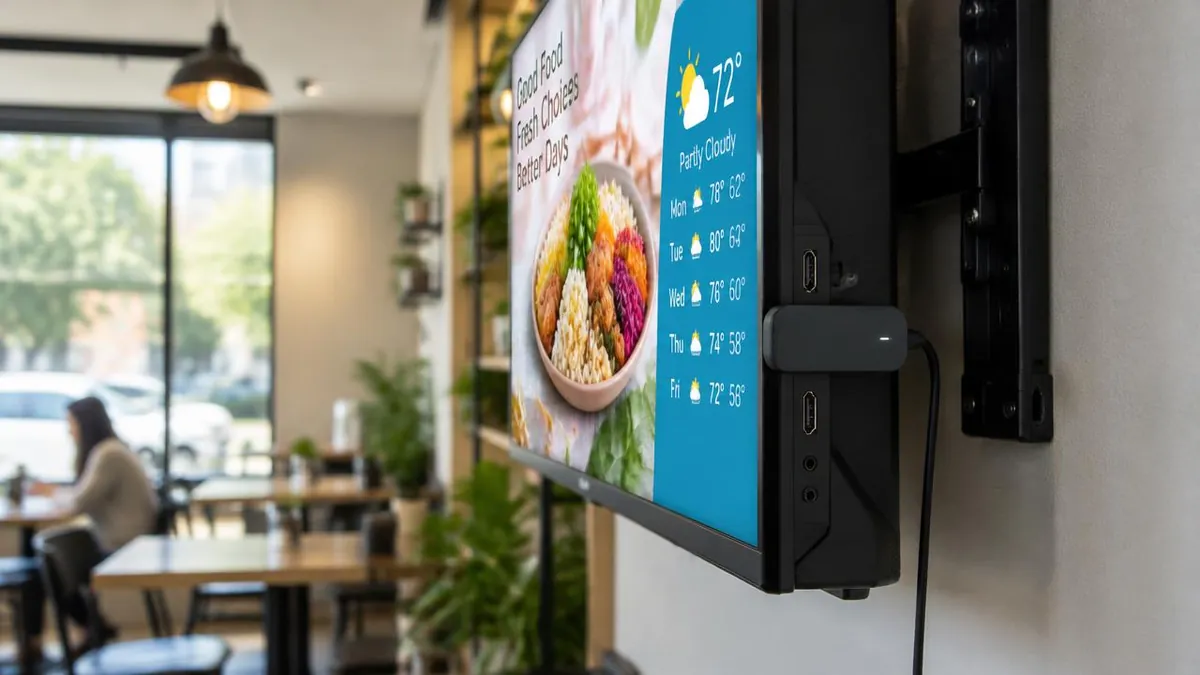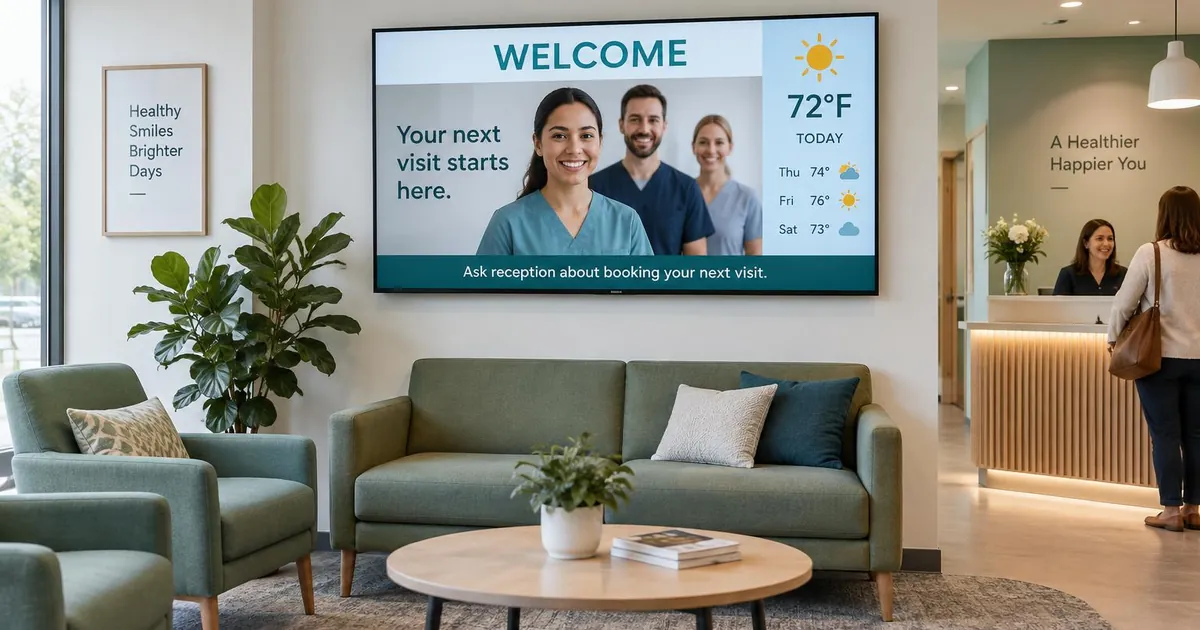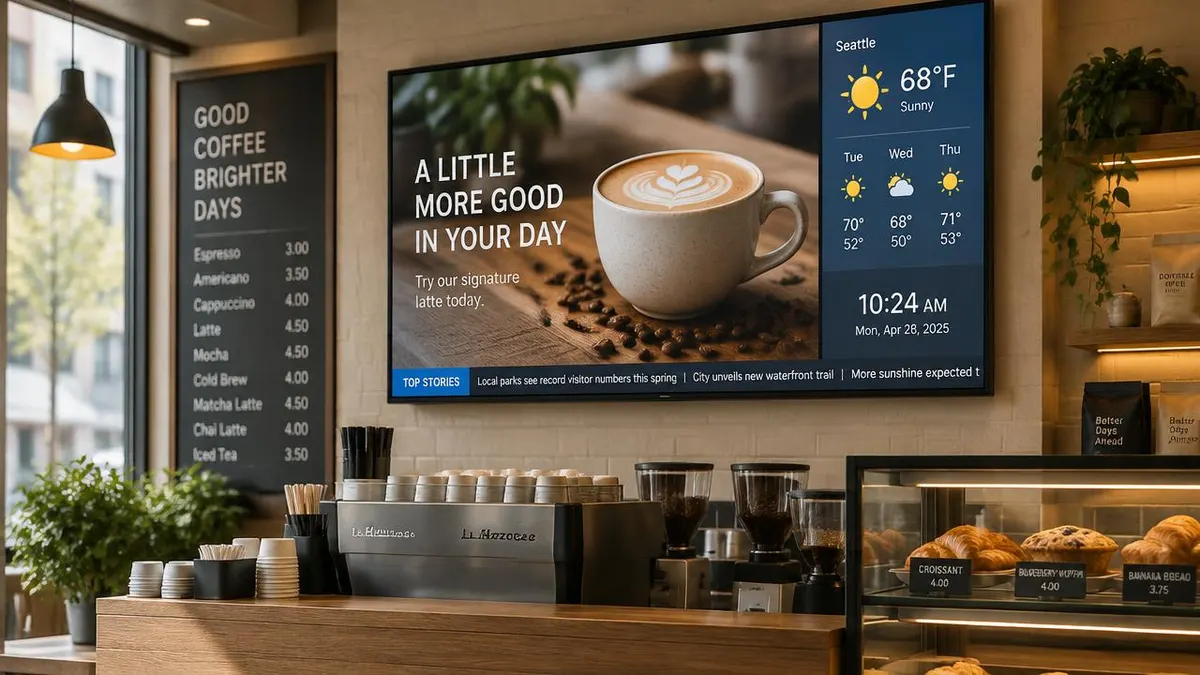
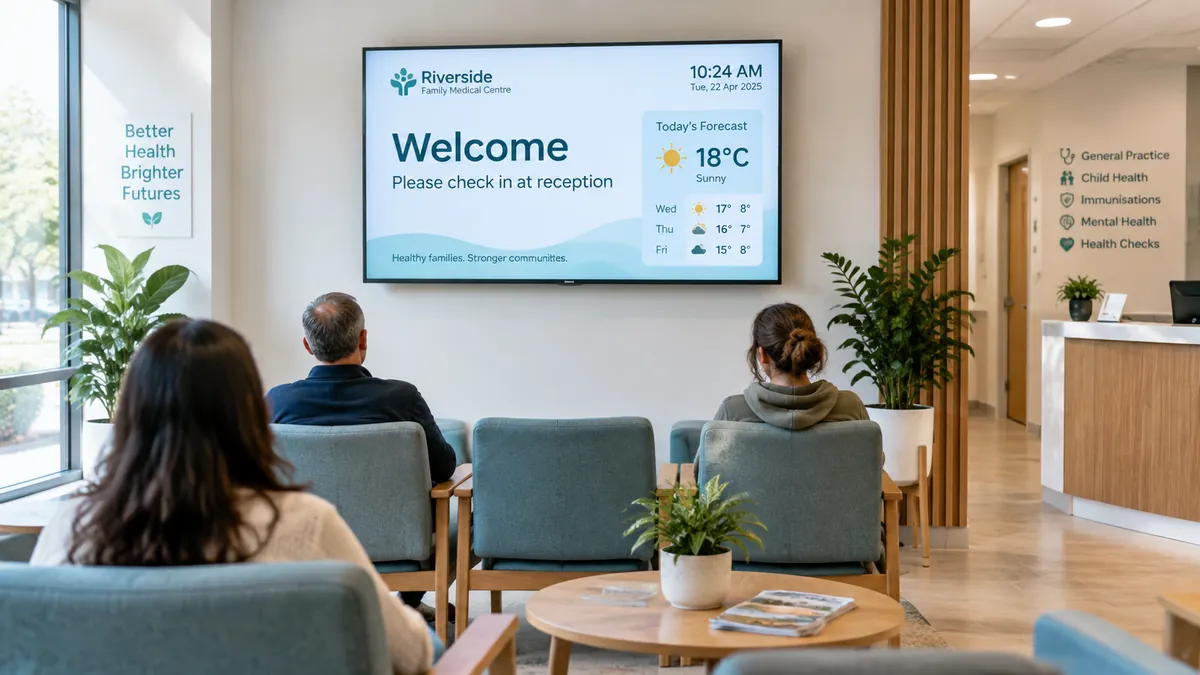
A waiting room TV works best as an information screen, not a cable channel. People who are waiting want three answers: did I check in correctly, how long will this take, and what happens next. A screen that answers those questions, then fills the rest of the loop with short, useful messages, makes the wait feel calmer and cuts the number of questions your front desk has to handle.
This guide covers what to show on a waiting room TV, what to leave off, whether to use sound, how to set one up with a TV you already own and what it costs. It applies to medical and dental practices, veterinary clinics, auto service lounges, salons, banks and public offices.
What a waiting room information screen does
Waiting room information screens replace printed notices, a stack of brochures and a TV tuned to whatever channel was on last. Instead of one fixed message, the screen plays a short playlist that you manage from a browser. You can change a holiday closure notice in a minute, schedule morning and afternoon content, and update every location from one account.
Each setup needs three parts: a screen, a small media player plugged into the screen's HDMI port, and signage software to build and schedule the content. If you are new to screens, the digital signage basics guide explains how those parts fit together.
Waiting room screen ideas by type of business
| Waiting room | Useful content | Keep off this screen |
|---|---|---|
| Medical clinic or doctor's office | Check-in steps, provider hours, flu shot dates, general health tips | Patient names, appointment reasons, live practice software screens |
| Veterinary clinic | Pet care tips, vaccination reminders, services, after-hours contact | Graphic procedure footage, pet owner details |
| Auto service lounge | Service specials, how to get a status update, Wi-Fi details, weather | Customer names with vehicle or invoice details |
| Salon or spa | Service menu, stylist introductions, products, booking reminder | Long price lists that change weekly without an owner |
| Bank or credit union | Rates and product notices approved by compliance, branch hours | Account information, unapproved rate claims |
| Government or public office | Which counter to visit, documents to bring, office hours | Personal case details |
| Law, accounting or professional office | Welcome, team introductions, services, seasonal deadlines | Client names and matter details |
Swipe the table sideways to see all columns.
Healthcare has its own guides. For hospital wayfinding, ER and urgent care wait-time displays, see hospital screen ideas guide. For dental practices, see dental office digital signage ideas. For city halls, courts and libraries, see public building screen ideas.
What to put on a waiting room TV
A good loop runs a few minutes and repeats, so someone who waits fifteen minutes sees each message more than once without getting bored. Six to ten slides is a comfortable starting point. Give each slide one idea and enough time to read it from the farthest chair.
1. A welcome and a check-in instruction
Open with your business name and one clear instruction, such as checking in at reception or taking a ticket. This is the question new visitors ask most, and answering it on the wall helps the front desk straight away.
2. What happens next
Explain the process in plain words: you will be called by name or number, a technician will come and find you, or your vehicle status is available at the service desk. If you run a queue system, Sign Studio lists a FasterQ component that adds queue information to customer-facing screens. Confirm your queue setup works with it before you buy.
3. Your services and current offers
People in a waiting room have time to learn what else you do. Show one service per slide with a short benefit, and keep prices only where someone is responsible for updating them. A slide that lists an old price causes more questions than it answers.

4. Short tips and how-to messages
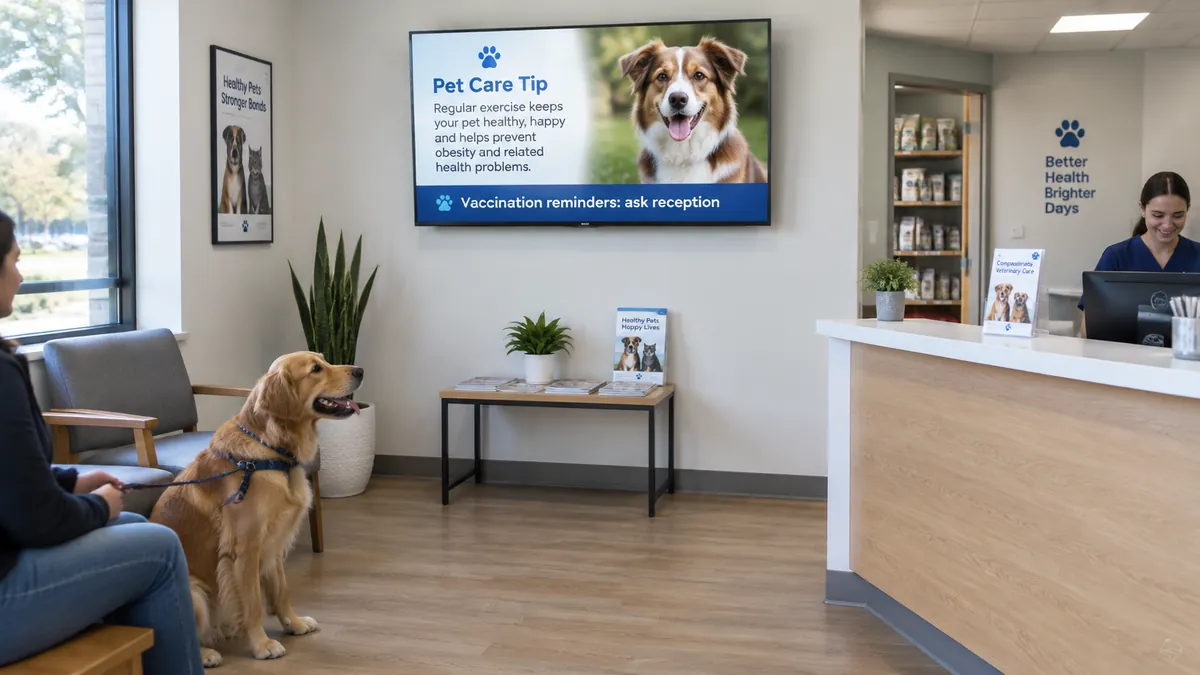
A pet care tip at a vet, a seasonal maintenance reminder at a garage or a general wellness message at a clinic gives people something useful to read. Health-related wording should be reviewed by a qualified member of your team and should stay general, not advice about a particular person.
5. Weather, time and a short news ticker
A small weather forecast and clock make the screen feel live, and people glance at them often. A ticker along the bottom suits a short notice or an RSS news feed. Sign Studio includes Weather, Clock and RSS components, listed in our Sign Studio apps directory. Live feeds need an internet connection to refresh.
6. Notices with an end date
Holiday hours, a temporary entrance or a new phone number are ideal screen messages, as long as someone removes them on time. Scheduling a start and end date when you add the notice stops expired messages from lingering for months.
7. A QR code for the next step
A QR code can open your booking page, a review page or a form. Say where it goes, test it from a seat with a phone, and keep a non-phone option available at the desk.
8. A calm video or photo loop
A short muted video, a team photo or a behind-the-scenes clip breaks up text slides. Sign Studio supports uploaded video and a YouTube component. Choose calm footage and keep clips short so the important slides come around again quickly.
For layouts used in restaurants, offices, schools and gyms, our digital signage content ideas has twelve more examples.
Content that backfires in a waiting room
- Cable news and talk shows. Upsetting headlines and arguments raise tension in a room full of people who are already waiting.
- Personal details. Names next to appointments, vehicles, balances or case details do not belong on a public screen.
- Long paragraphs. If a slide needs a paragraph, it needs a handout or a web page instead.
- Fast transitions and flashing effects. They are hard to read and tiring to watch.
- Old information. One expired offer makes people doubt everything else on the screen.
Should a waiting room TV have sound?
Usually not. Staff need to call names, people take phone calls, and the same audio loop heard all day wears on the front desk. Run the screen muted, put the key words on the slide itself and turn on captions for any video. Keep sound for specific cases, such as a single welcome video in a quiet showroom.
If you are thinking about playing cable or a streaming service instead, check your provider's terms first. Many residential TV and streaming subscriptions are licensed for personal, non-commercial viewing, so showing them in a business can require a commercial account.
Keep personal information off the screen
A waiting room screen is public. Plan it so nobody can be identified by what appears there: call people by ticket number where possible, never mirror an appointment calendar or practice software screen, and keep account or treatment details at the desk. In healthcare, review the plan with the person responsible for privacy under the rules that apply in your region. Software alone cannot make a display compliant.
How to set up a waiting room TV
- Pick the spot. Mount the screen where most seats can see it without turning, away from window glare, and check it from the farthest chair.
- Connect a media player. Plug the player into the TV's HDMI port and USB power, then connect it to Wi-Fi or a wired network.
- Pair the screen. The player shows a 4-digit code. Enter it in your Sign Studio account to add the screen.
- Build the playlist. Start from a free template, add your slides plus weather or a ticker, and schedule when each one plays.
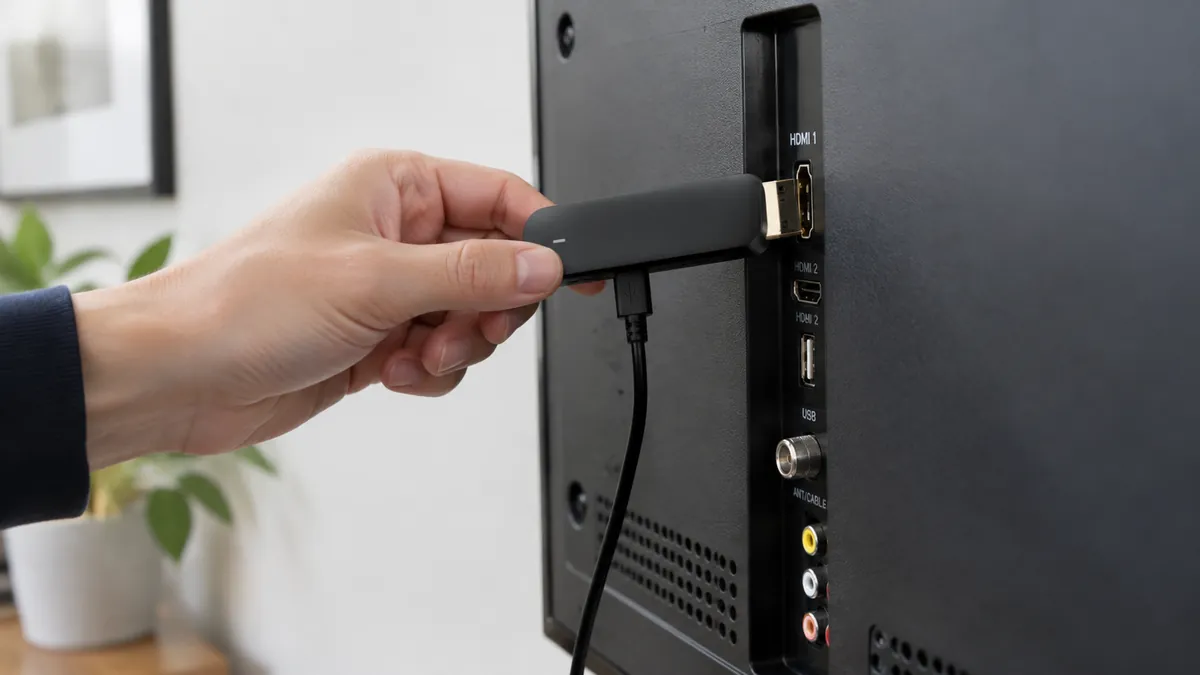
Content downloads to the player and keeps playing from its cache if the internet drops; new updates and live feeds resume when the connection returns. The full walkthrough with photos is in our digital signage setup walkthrough guide, and digital signage template library has ready-made layouts.
Can you use a regular TV?
Yes. Most of our customers use a TV they already own or buy their own, as long as it has a free HDMI port and sits in a good position. For screens that run long hours every day or face bright light, a commercial display is designed for that kind of use, and we can supply one on request.
What a waiting room TV costs
| Item | Typical cost |
|---|---|
| Signage software | $8 per screen per month |
| Media player | Free with a new yearly license, otherwise $50 |
| Reusing a TV you own | $0 |
| 43-inch commercial display, if needed | $495 to $600 |
| 50-inch commercial display, if needed | $550 to $750 |
| Standard indoor installation, if needed | $250 to $350 per screen |
| Custom branded template | $200 one time, optional |
Swipe the table sideways to see all columns.
With a TV you already own, a single waiting room screen on a yearly plan is $96 per year in software, with the media player included. Current plans are on digital signage pricing, and the digital signage budget calculator totals a larger rollout.
Managing waiting rooms in several locations
Group screens by location in one account. Shared slides, such as a seasonal campaign, go to every waiting room at once, while each location keeps its own hours, staff photos and notices. Check each site's local details separately, because a shared slide with the wrong phone number is repeated everywhere.
Healthcare groups that need approval steps and department-level permissions can find those details on healthcare digital signage software.
What should I show on a waiting room TV?
Start with a welcome and check-in instruction, an explanation of what happens next, your services, short tips, weather and time, and dated notices. Six to ten slides that repeat every few minutes is a comfortable loop. Keep personal details off the screen.
Can I use a regular TV in my waiting room?
Yes. A TV with a free HDMI port works with a small media player. For screens that run long hours every day or face bright light, a commercial display is the better choice, and E Display can supply one on request.
Do I need cable TV for a waiting room screen?
No. An information screen plays a playlist you manage from a browser, so it needs an internet connection rather than a cable subscription. If you want to show cable or streaming services, check your provider's terms, because many residential plans are for personal, non-commercial viewing.
Should a waiting room TV have sound?
Usually not. Muted screens let staff call names and keep the room calm. Put the key words on each slide and use captions on videos.
How much does a waiting room TV cost?
Software is $8 per screen per month. The media player is free with a new yearly license, or $50 otherwise. Reusing a TV you own keeps the screen cost at $0, so one screen on a yearly plan is $96 per year in software.
How often should waiting room content change?
Review it at least monthly, and remove dated notices as soon as they expire. Adding a start and end date when you schedule a notice keeps the loop current without extra work.
Turn your waiting room TV into an information screen
Tell us what kind of waiting room you have and where the screen hangs. We will suggest a layout and a first playlist.

About the author: Khalid Qadir
Khalid Qadir is Co-Founder & VP Business Development at E Display, with 20+ years of experience as a Principal Product Manager scaling AI-driven enterprise platforms including conversational AI, agentic automation, and digital signage and CX systems for Fortune-scale organizations.
Connect with Khalid on LinkedInStill choosing a vendor? Compare digital signage platforms head to head, run your own numbers with the digital signage budget calculator, or see our digital signage pricing at $8 per screen per month with a free media player.
Related digital signage solutions
- Healthcare solutions Better patient experiences.