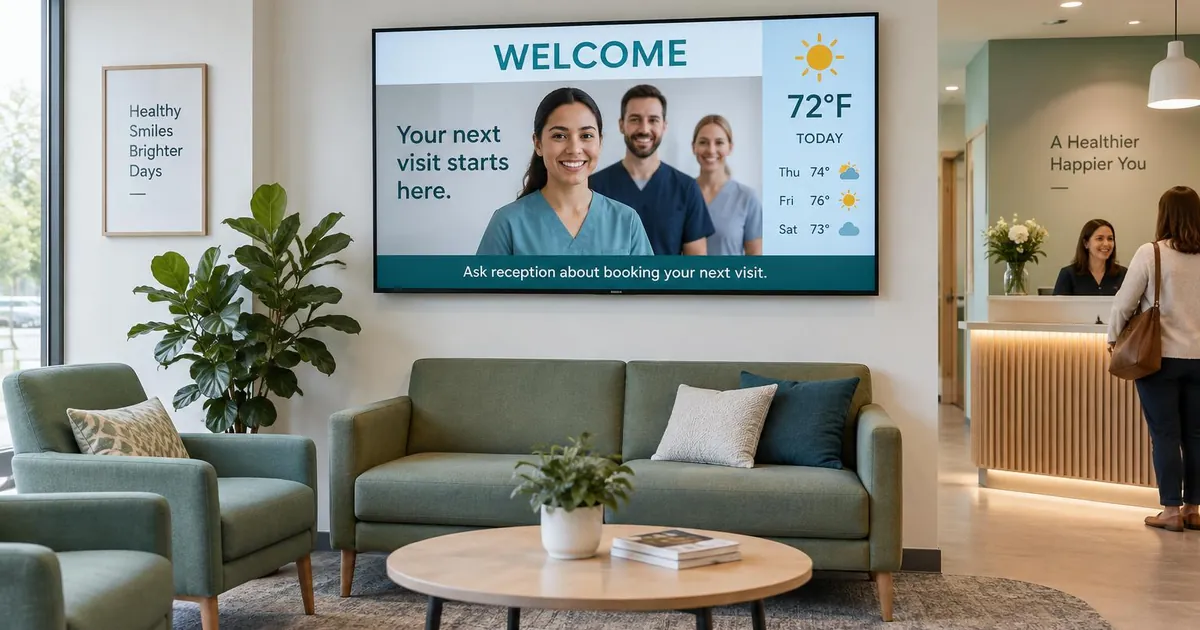
Dental office digital signage turns a waiting-room TV into a useful practice information screen. Instead of an unrelated television channel or a wall of printed notices, patients see a welcome, dentist-approved oral-health information and a clear next step before they leave. The best starting point is one screen with a small, calm playlist that your reception team can keep current.
Give each dental screen a specific job
A patient sitting in the waiting room has time to read a short explanation. Someone checking out at reception needs a quick reminder. Do not send the same long loop to both places. Match the content to what people are doing, and keep public practice information separate from individual treatment discussions.
| Screen location | Useful content | Keep off this screen |
|---|---|---|
| Waiting room | Welcome, team introductions, oral-health reminders and practice notices | Patient names, appointment lists and graphic treatment footage |
| Reception or checkout | Rebooking reminder, contact details and general service information | Personal balances, insurance details and treatment plans |
| Private consultation room | Clinician-led general procedure explanations | A public playlist that interrupts the consultation |
| Staff-only space | Content review reminders and non-patient operational notices | Patient records in the general signage account |
Swipe the table sideways to see all columns.
Six useful messages for a dental waiting-room TV
1. A welcome and a simple check-in instruction
Start with the practice name and one instruction, such as asking new visitors to check in at reception. Add general opening hours or parking information where useful. A welcome slide does not need a patient name to feel friendly, and it should not mirror your appointment calendar.
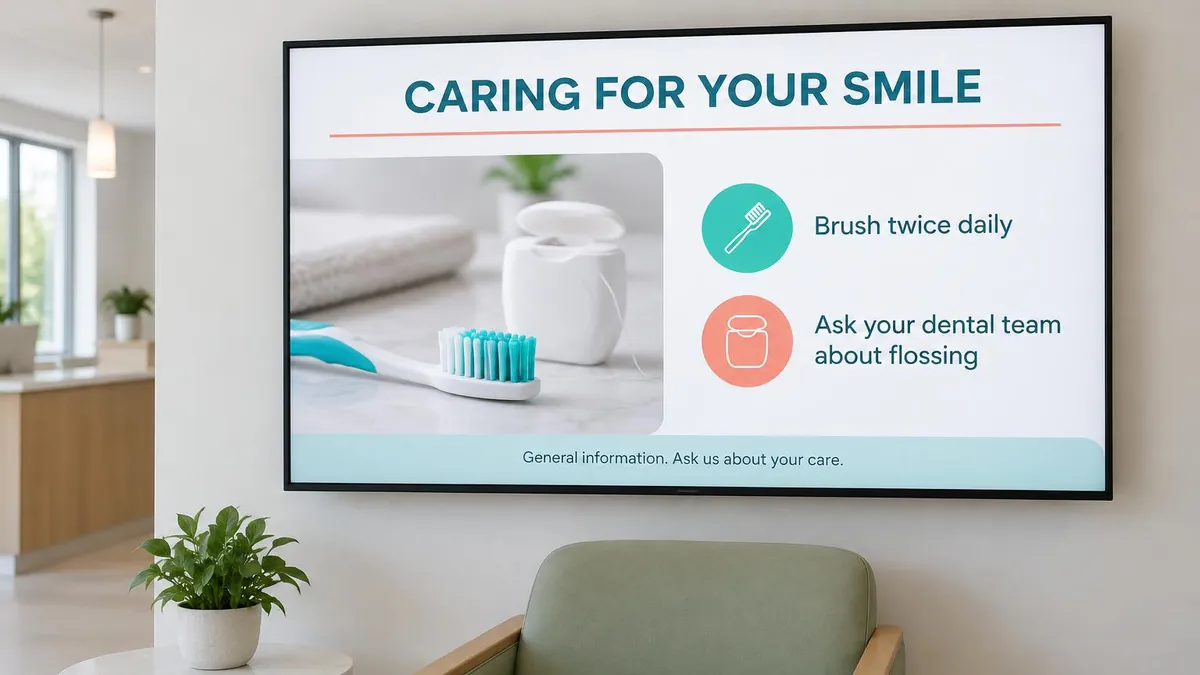
2. Dentist-reviewed oral-health reminders
Use one topic per slide: brushing, cleaning between teeth or bringing questions to the next appointment. Have a dentist review the wording and choose a reliable source rather than copying advice from social media. The American Dental Association's ada.org — oral health topics is a starting point for oral-health information. Public slides provide general education, not advice about an individual patient's care.
3. Meet the dental team
Introduce a dentist, hygienist or receptionist with an approved photo, their name and their role. Keep credentials accurate and ask staff for permission before using their photographs. A short introduction can explain who does what without turning the screen into a lengthy staff biography.
4. Explain services without promising results
Describe services the practice actually offers, such as routine appointments or a consultation about whitening. Use plain language and invite patients to ask the dental team whether a service is suitable for them. Avoid guaranteed results, unsupported before-and-after claims or finance terms that have not been checked. Leave individual recommendations to the consultation.
5. Practice notices with an expiry date
Holiday closures, a changed entrance or updated contact details are good screen messages. Assign someone to remove them when they stop being relevant. Appointment reminders should be general, such as asking patients to book their next visit, rather than publishing personal appointment times.
6. Weather, time and a short reception ticker
A small weather forecast and clock can sit beside the main message. Reserve a bottom ticker for a short practice notice, not several competing news feeds. Keep important instructions static as well, so a patient does not have to follow moving text. Sign Studio's available weather, clock and text components are listed in our E Display digital signage apps directory. Weather and other live feeds need internet access to refresh.
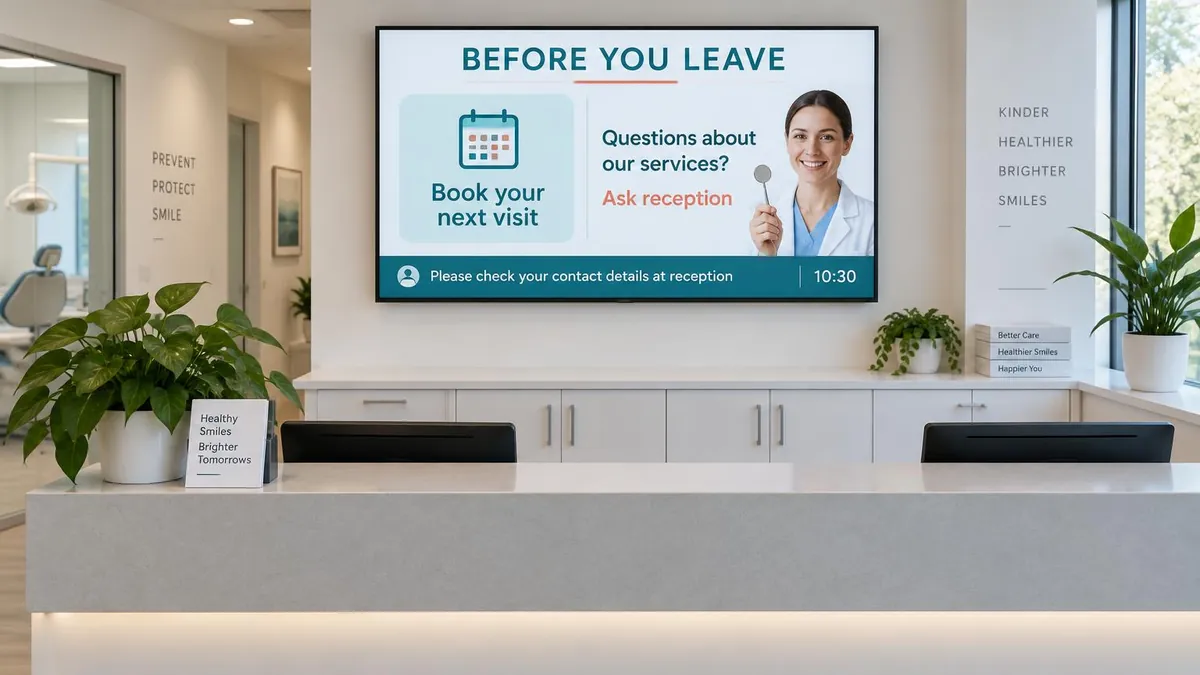
Use reception screens for the next step
At checkout, make the message brief: book your next visit, check your contact details with reception, or ask about a service. A QR code can point to the practice's public booking page if that page is suitable for general use. Label its destination clearly, test it on a phone from the normal viewing position and offer a non-phone alternative. Never encode a patient's details or a private treatment link in a public code.
Protect patient privacy on public displays
Keep patient names, appointment reasons, diagnoses, treatment plans and account balances out of public signage playlists. Do not use a screenshot of your practice-management dashboard as a waiting-room slide. If the practice needs a queue display, review the whole workflow with the person responsible for privacy and confirm any integration before purchase. A ticket number is not automatically anonymous if other visible information identifies the person.
In the United States, HHS explains that some incidental disclosures can be permitted when reasonable safeguards are in place and information is appropriately limited: hhs.gov — index. That is not blanket permission to publish patient information on a screen. Software alone cannot guarantee HIPAA compliance; the practice must assess its content, access and procedures under the rules that apply in its region.
Make the screen comfortable to read
- Check the seated view. Test the screen from the farthest waiting-room chair and avoid glare from windows.
- Keep words large and contrast clear. One headline and a short supporting sentence usually work better than a paragraph.
- Give readers time. Preview each slide with someone who has not seen it before and slow the loop where necessary.
- Keep the room calm. Avoid flashing effects, graphic procedure footage and audio that competes with reception.
- Plan for language and accessibility. Use the languages your patients need, caption videos and do not rely on sound alone.
Keep a small playlist current
Begin with a welcome, a reviewed oral-health slide, a team introduction and a rebooking reminder. Give reception ownership of practice notices and a dentist responsibility for clinical wording. Review the playlist regularly, remove expired information and ask the front desk which questions still need a clearer answer. With several offices, keep shared educational slides consistent while checking each location's contact details and notices separately.
Start with a waiting-room display you already own if it has a suitable HDMI connection and is positioned well. Confirm player compatibility before ordering. Our digital signage setup walkthrough explains setup, and digital signage pricing covers current plans. Downloaded content can play from the player's cache during an internet interruption; new updates and live feeds still need a connection.
For the wider software and management options, visit E Display healthcare digital signage. The digital signage content ideas covers layouts across industries, while digital signage content design services is the option for having branded content created for your practice.
What should dental office digital signage show?
Show a welcome, dentist-reviewed oral-health reminders, team introductions, general service information and practice notices. Reception screens can add a rebooking reminder. Keep patient-specific information off public displays.
Can we use our existing dental waiting-room TV?
A TV with a suitable HDMI connection can often be reused with a compatible media player. Check its condition, viewing angle, operating hours and player compatibility before choosing equipment.
Should a dental waiting-room screen show patient appointments?
Do not mirror an appointment calendar or practice-management dashboard on a public screen. Keep personal appointment details private and have any queue workflow reviewed by the practice's privacy lead.
Can a dental screen show weather and a ticker?
Yes. Sign Studio has weather, clock and text components that can sit alongside your main message. Keep the ticker short and repeat essential instructions in static text. Live weather needs internet access to refresh.
Who should approve dental signage content?
A dentist should review clinical wording, while a designated practice team member maintains hours, contact information and notices. Review patient privacy and permissions before publishing content or photos.
Plan your dental practice's first screen
Tell us where patients sit and what reception needs to communicate. We can help you choose a screen layout for your practice.

About the author: Khalid Qadir
Khalid Qadir is Co-Founder & VP Business Development at E Display, with 20+ years of experience as a Principal Product Manager scaling AI-driven enterprise platforms including conversational AI, agentic automation, and digital signage and CX systems for Fortune-scale organizations.
Connect with Khalid on LinkedInStill choosing a vendor? Compare digital signage platforms head to head, run your own numbers with the digital signage budget calculator, or see our digital signage pricing at $8 per screen per month with a free media player.
Related digital signage solutions
- Healthcare solutions Better patient experiences.